How to make a mixed-supplier catalog look like one photoshoot
Supplier renders, old lightbox shots and phone photos side by side make a store look stitched together. Here is how to reshoot every product into one look with ShelfPic — the workflow, the settings to lock and what it costs.
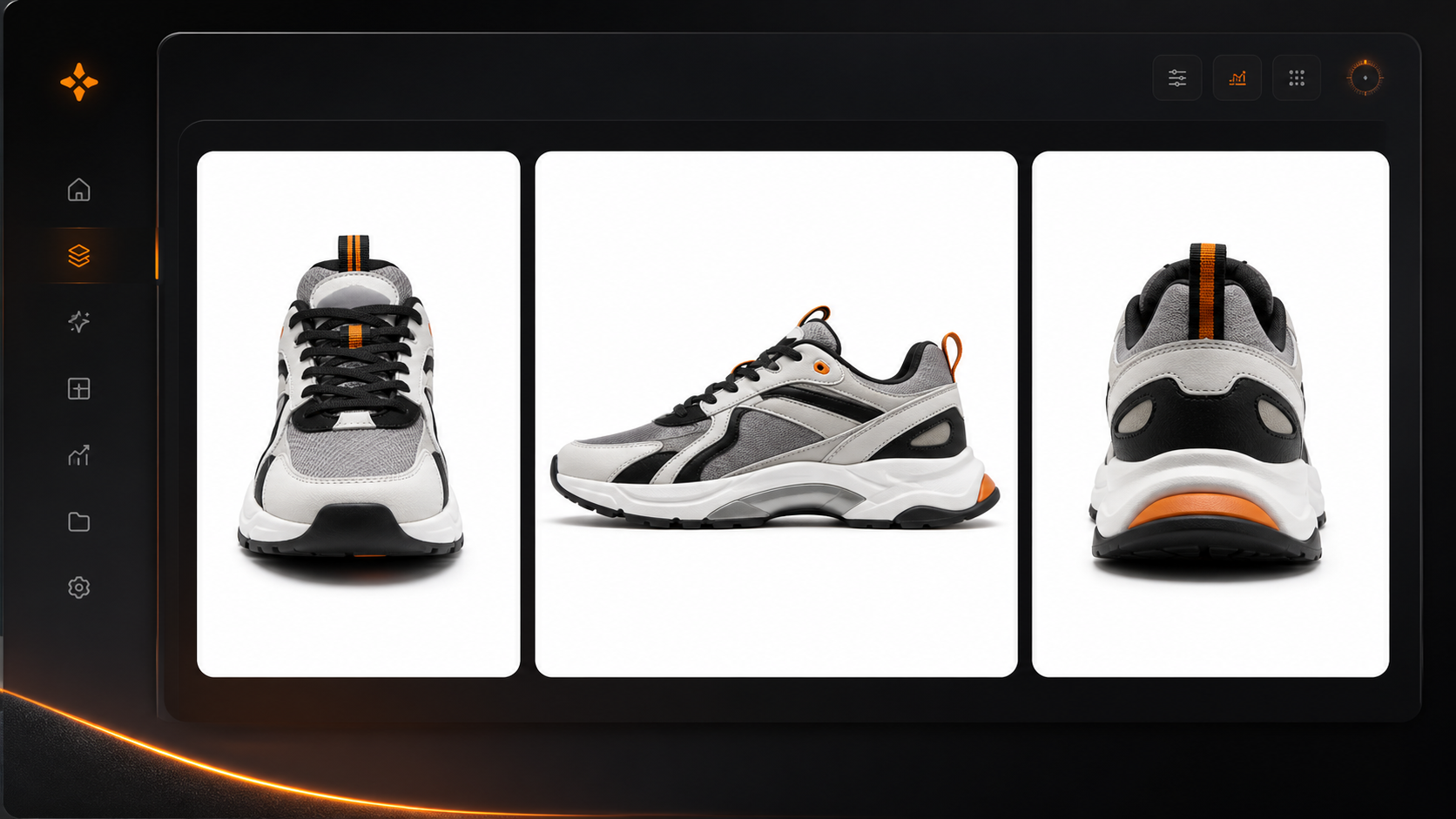
To make a catalog look like one photoshoot, reshoot every product through the same template with the same settings, so background, lighting, framing and aspect ratio stop varying between sources. This guide walks through that workflow in ShelfPic's AI Product Photo Generator, the settings worth locking, and what a catalog refresh costs in credits.
Why a catalog looks stitched together
Most stores don't have one bad photo. They have several good photos that were never meant to sit next to each other. Each source brings its own look:
| Source | What gives it away |
|---|---|
| Supplier renders | Pure CGI lighting, oddly perfect edges, a different white every time |
| Old lightbox photos | Flat light, grey-ish white, the product small in the frame |
| Phone photos | Mixed room light, a real background, wide-angle distortion |
| Marketplace downloads | Different crops and margins, sometimes a watermark |
Side by side in a collection grid, those differences read as a store with no point of view — even when every single image is fine on its own.
The plan: decide the look once, then stop deciding
Consistency comes from making each decision one time and applying it everywhere.
| Variable | Lock it to |
|---|---|
| Scene and lighting | One template, used for every product in the collection |
| Shape | One aspect ratio — 1:1 is the safe default for grids and marketplaces |
| Framing | The same product size in frame — nudge it with a short tweak when needed |
The template does most of the work: it carries the scene, the light and the composition, so two different products shot through it end up looking like they came from the same session.
Step by step in ShelfPic
1. Gather the originals
Collect one clear photo per product. It does not need to be good — ShelfPic reads the product's shape, material and label from it and rebuilds the rest. It does need to be clear: at least 300px on the short edge, JPG, PNG or WebP. Crop out other products if several share the frame; the largest, most frontal product is treated as the hero.
2. Pick one template and keep it
In the AI Product Photo Generator, browse the templates and pick one that suits the whole collection rather than one product. For a mixed catalog, the Color Studio category is a good starting point — seamless backgrounds such as Tight Pack Shot or Skyward Seamless flatter very different products without competing with them.
Test the template on the two or three products that differ most from each other — the tallest, the flattest, the most reflective — before committing the whole catalog to it.
3. Set the aspect ratio once
Choose 1:1 (or whatever your storefront grid uses) and leave it. Changing it midway is the most common reason a "consistent" catalog ends up with uneven margins.
4. Generate, compare, keep the best take
Each generation returns up to four takes of the same product. Keep the best one and move on; if none of them is right, use Recreate from the result to run the same template again, or add a short tweak such as "product slightly larger in frame".
ShelfPic works one product per click — there is no bulk-folder upload. What keeps a large catalog moving is that generations run in parallel: your plan runs up to 8 (Starter), 15 (Pro) or 25 (Max) at once, so you can add the next product while earlier ones are still rendering.
What it costs
Every take costs 30 credits, and images come back at 2K.
A worked example for 100 products: one take each is 3,000 credits; keeping the best of two takes each is 6,000. For reference, the Pro plan includes 3,500 credits a month and Max 10,000 — current prices are on the pricing page.
Consistency checklist before publishing
- Every image in the collection uses the same template and aspect ratio.
- The product fills a similar share of the frame from image to image.
- Labels and logos are readable and match the real packaging.
- Colours are true to the product — compare against the physical item, not the old photo.
Common questions
Can I upload a whole folder at once?
No. ShelfPic generates one product per click, with up to four takes each. Large catalogs move quickly because several generations run at the same time — up to 8, 15 or 25 depending on your plan.
Will a template work for products of very different shapes?
Usually, but test first. Run the template on your most different products — tall, flat, reflective — before using it for the whole catalog, and pick a seamless studio template if one scene has to fit everything.
How do I keep the look consistent when I add new products later?
Write down the template and aspect ratio you used, and use the same pair for every new product. That is the whole recipe.
Start free
Turn your next photo into a listing-ready shot.
Upload any product photo and get studio-quality visuals in seconds — no studio, no shoot day.
Try ShelfPic free